
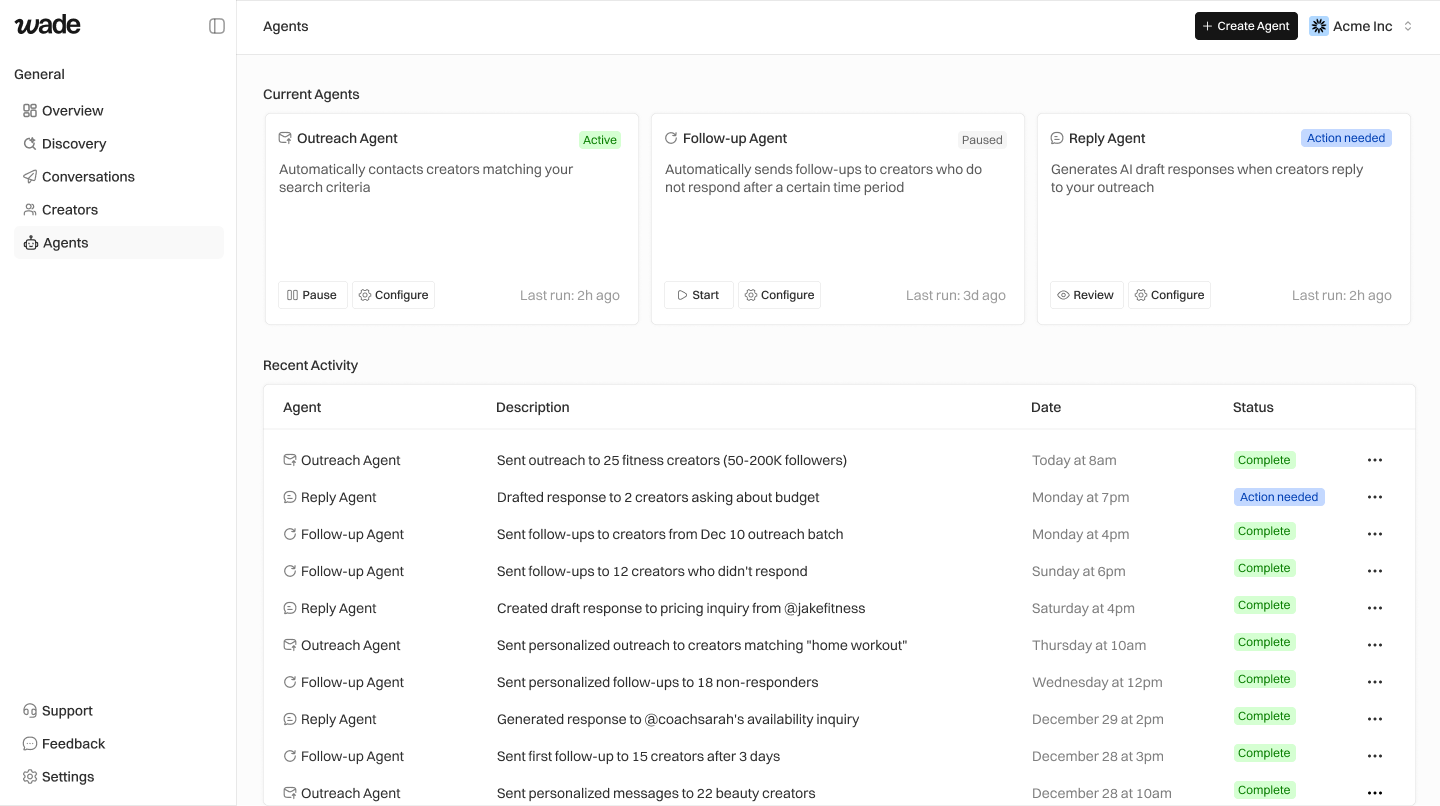
Agent Types
| Agent | What it does |
|---|---|
| Outreach Agent | Sends initial cold emails to creators |
| Follow-up Agent | Sends follow-ups to creators who don’t reply |
| Reply Agent | Drafts responses when creators reply (requires your approval) |
Configure Outreach Agent
- Go to Agents
- Click Configure on the Outreach Agent card
Email Template
Write your outreach email. Use variables for personalization:{creator_name}— Creator’s name{handle}— Their @username{platform}— TikTok, Instagram, etc.{follower_count}— Their follower count{content_topic}— AI-detected content topic{brand_name}— Your company name{your_name}— Your name
Sending Schedule
Set when emails go out:- Days — Select which days (Mon-Fri recommended)
- Time window — e.g., 9am-11am
- Max per day — Limit daily sends (start with 20-30)
Activate
Click Start to activate. The agent will begin sending to creators in your outreach queue.Configure Follow-up Agent
- Click Configure on the Follow-up Agent card
Settings
- Days to wait — How long after initial outreach (3-7 days recommended)
- Max follow-ups — How many follow-ups per creator (1-2 is typical)
- Template — Write your follow-up message
Example Follow-up
Configure Reply Agent
- Click Configure on the Reply Agent card
Settings
- Company info — Your brand description (used for context)
- Pricing guidelines — Budget ranges for AI to reference
- Brand voice — Tone for responses (professional, casual, friendly)
Reply Agent drafts always require your approval before sending. You’ll review each draft in Conversations.
Start and Pause Agents
- Click Start to activate an agent
- Click Pause to stop it temporarily
- Paused agents keep their configuration
View Agent Activity
Click View details on any agent card to see:- Recent actions taken
- Emails sent
- Success/failure logs
- Performance stats